Cord Cutting Cost Update

Unlike my lengthier Cord Cutting and Cost Cutting posts of 2018 and 2020, this is just a quick update on what I’m currently paying for streaming, internet, phone, security and other online services to help gauge how these have changed over the last few years in the greater Houston area. (Please refer to those previous posts for details, comparisons and rationales.) Monthly costs listed below include all fees and tax. A little over $200/month for all of these services is less than some friends pay for satellite or cable TV/phone/internet packages with Comcast, Verizon, or (perhaps worst of all) AT&T. So, I’m thinking cord cutting cuts costs along with improving choice.

Provider & Service NameService TypeMonthly Cost
Comcast Xfinity cable (400 Mbps)Internet Broadband$50
Apple One Premier
• Music
• TV+
• Arcade
• iCloud (2TB)
• News+
• Fitness+
Bundle
• Music
• Video Streaming
• Games
• Cloud Storage
• News & Magazines
• Fitness Videos
$32
Amazon PrimeBundle
• Fast Shipping
• Video Streaming
$11 ($120 annually)
Disney+Streaming$7 ($80 annually)
HBO Max (ad-free)Streaming$16
PBS PassportStreaming$5 (donation)
YouTube Premium Family (ad-free)Streaming$25
SiliconDust HDHomeRunBroadcast TVFree
SiliconDust HDHomeRun DVRBroadcast TV DVR$3 ($35 annually)
Audible Premium PlusAudiobooks$16
Mint Mobile (10GB/month)Mobile Phone$22 ($240 annually)
Google Voice with OBi200 (VoIP)Home PhoneFree
ADTHome Security$22
TOTAL$209
Monthly Cost Summary Table

Cost Cutting

In 2018 I wrote about Cord Cutting, my experience dropping my overpriced DirecTV satellite TV service several years ago and relying solely upon Internet TV & movie streaming services. Cord cutting saved some money, but was also about choice, chasing the a la carte TV dream: only paying for what you want rather than 500 channels of useless crap, and turning services on and off monthly as needed rather than being stuck in bloated long term contracts. (That post remains mostly applicable two years later, though all of the quoted costs have increased.) As the COVID-19 pandemic spread worldwide early this year, like many people I focused on cutting costs, trimming the fat from monthly bills, subscriptions, and online services. So, Cost Cutting is an update to Cord Cutting, providing a few ideas on how to save more than a few bucks, especially for those unfortunate souls still overpaying an “Evil Corp” (the likes of Comcast, Charter, DirecTV, AT&T or Verizon) for TV/phone/internet bundles. Time to go all Marie Kondo and streamline your connected life!

Streaming Apps & Online Subscriptions

First, I saved nearly $60/month by dropping Hulu (no ads), Sling (Orange + Sports Extra) and Netflix (Premium 4K). I only had Hulu for late-night comedy/talk shows (watched in the morning over coffee and breakfast) and The Handmaid’s Tale. My wife found the latter too depressing (fascist religious fanatics take over US Gov…a little dark), and I could record the late-night shows with my HDHomeRun Extend box, cheap antenna, and $30/year (<$3/month) HDHomeRun DVR service. I was only using Sling for watching sports on ESPN (1, 2 & 3) and the Tennis Channel (w/ Sports Extra), so once the pandemic shut down most sports, turning off Sling was a no-brainer. Despite enjoying Patriot Act on Netflix, I found it was easy to let the red N go as well. Last month we restarted Netflix for the final season of the sci-fi series Dark (so German), and my sister Claire’s recommendation, the dark comedy Dead To Me (Christina Applegate is great…who knew?!), but having finished those, we’ll probably turn it off again. I kept these subscriptions and apps:

  • HBO Max: $15/month, formerly HBO Now
  • Apple TV+: free for a year with recent device purchase (otherwise $5/month)
  • Disney+: $70/year = $6/month, mainly for Star Wars, Marvel & Pixar movies, not to mention Jeff Goldblum and, of course, Baby Yoda on Mandalorian
  • Amazon Prime Video: included with Prime Membership ($120/year = $10/month)
  • PBS Video: free by default, though I donate $5/month to PBS for their excellent catalog
  • Comedy Central, 60 Minutes, TED Talks, video podcasts and YouTube videos, all free (with ads)

Next, I reduced my Audible audiobook subscription from Gold at $15 for 1 book credit every month, to Silver at the same price every other month, saving ~8/month. (All those books in my GoodReads list at right were audiobooks, so it really should be GoodListens.) I mainly listen to books with my iPhone while driving, so my audiobook listening time plummeted along with car time due to teleworking, and books took longer to finish. In fact, I later canceled Audible altogether (still keeping purchased audiobooks), though I recently restarted again to replenish my unread/unheard library. If you’re new to Audible, you’ll likely see only Gold and Platinum membership options, and wonder how to get the cheaper Silver. The answer is to use the same leverage you have over all monthly subscriptions and services: threaten to cancel. As soon as an Audible member clicks to cancel their subscription, the Audible site tries to keep you by offering lower cost alternatives such as the “secret” Silver level. Sneaky bastards to be sure, so you have to know how to play the game.

Internet Service

With little competition at the high end of broadband service, cable is still the best Internet option in our area. The growth of optical fiber networks (e.g., Google Fiber or Verizon Fios) has slowed to a crawl in the US, hasn’t reached our neighborhood, and DSL generally remains a slower, less reliable choice (you can only get so much out of a twisted pair of skinny copper wires). Perhaps Elon Musk’s Starlink constellation will help disrupt/bypass cable Internet with fast-n-cheap satellite access, but that literally just got off the launch pad. Cable companies such as Comcast and Charter pay…er…lobby legislators hard to keep their local monopolies on cable service, so for us, cable = Comcast.

I dropped my Comcast Internet bill from >$90 to $50/month by dropping my speed from 200Mbps to 75Mbps (speed tests show we actually get 90Mbps most of the time), which is sufficient for 2 non-gamers streaming simultaneously (a large family with gamers may need more shared bandwidth). Since 2018, Comcast finally stopped forcing a TV/internet bundle to get the best Internet price, acknowledging that many people no longer want their bloated TV packages. So, I now pay Comcast the minimum for Internet access only (forcing the switch from HBO Go to HBO Now/Max noted above). I call Comcast about once a year to make sure I have their cheapest Internet option, since they’re always changing options and prices. Comcast phone reps sometimes have access to options not shown on their web site, so ya gotta call. Of course, I always purchase my own cable modem (currently a Motorola MB7621), which is much cheaper than renting Comcast’s Xfinity modems.

Mobile Phone Service

In the Before Times, pre-pandemic, we were paying AT&T over $50/month (>$600/year) for Varya’s iPhone service, capped at 1GB of data. Years ago AT&T hit us with over-charges for exceeding that monthly cap when she accidentally left her phone on streaming music videos all night. We long ago switched her to an AT&T plan that simply slowed down above the cap rather than inflating the bill, but I was always on the lookout for a better alternative to AT&T. Enter Mint Mobile (thanks to Uncle Leo’s TWIT.tv network). Now for only $180/year = $15/month (!), she gets 3GB of data, far more than she ever uses in a month. If we paid Mint $25/month, half as much as we used to pay AT&T, she’d have 12GB, an order of magnitude more than AT&T’s low limit. The catch? Mint licenses the T-Mobile network, so you have to be in an area with good T-Mobile coverage, typically in or near cities. Fortunately, Varya gets great coverage in the greater Houston metro area, including driving downtown to work. When my Mom tried Mint, she found T-Mobile’s coverage was spotty out in the sticks of Misery…er…Missouri, so she returned to AT&T at over 3 times the price for their larger cellular network. (BTW, if you’re not too rural and want to try Mint Mobile, we both get a little bonus if you use my Mint referral link: http://fbuy.me/pFeNf)

Home Security Service

Your home security system is another often overpriced monthly service open to negotiation. When we bought our home in 2012, I signed up with ADT, locking myself into a 1 or 2 year contract at ~$45/month (silly boy, that was too high!). After the contract expired, I called ADT about the price, and they happily dropped it to ~$25/month…apparently they had a helluva profit margin to play with! Every year or two they’d increment the price, and when it got too high I’d call again to bring it back under $30/month. This year it increased to $36, and last month they sent an email suggesting it would increase again to $39. So, I called to cancel the service—remember, the threat of cancelation is always your best negotiating tool with any monthly service/subscription! They offered a “special pandemic price” of $15/month to keep me, and said I could ignore the price increase email…effectively acknowledging their recent price increases were BS, just squeezing extra profit out of loyal customers, assuming most wouldn’t notice or take action. In the increasingly competitive home security market—DIY newcomers like Ring Alarm and SimpliSafe are as low as $10/month—old companies like ADT must adapt to remain viable.

Bottom Line

How does all of that tally for my monthly costs? As of right now—and I could easily change it at any moment, which is what I love about cord cutting—my monthly pre-tax bill for all TV, audiobooks, Internet, cell phone, and monitored home security is $133 = $15 HBO Max + $16 Netflix Premium + $6 Disney+ (paid annually) + $5 PBS Video (donation, not required) + $3 HDHomeRun DVR (paid annually) + $8 Audible Silver + $50 Comcast Xfinity (75-90Mbps) + $15 Mint Mobile (paid annually) + $15 ADT Security. I may drop the $16 Netflix Premium, but restart the ~$30 Sling/ESPN/Tennis Channel for the US Open at the end of August, adding a net ~$14 this month, still keeping everything under $150. I don’t count Amazon Prime Video because I pay for Prime Membership for free 2-day shipping of my Amazon purchases and rarely watch their video service. I’m also not counting online movie rentals, because those are independent of streaming services—we typically use Apple TV to rent movies, but could easily use Prime Video, Vudu, or many other options at about the same cost per rental ($1-7). My “land line” phone service is free using Google Voice with an OBi200 VoIP box (and rarely used anyway).

So, the bottom line is that if you’re paying anything near or over $200/month for TV + DVR + Internet + audiobooks + cell & home phone + home security—or worse, just a subset of those—the bad news is you’re probably wasting money, and the good news is you have opportunities available now for cutting costs, maybe by half. Even if you’re afraid you’re not tech savvy enough to try cord cutting and managing various services a la carte, at the very least call your provider and say you want to cancel your bundled services due to cost—you’ll get transferred to a “retention specialist” who’s professional mandate is to keep you as a customer and thus who has the power to offer you deals and lower prices the first-line phone rep can not. Feel free to use any of the costs I quoted above as negotiation leverage…as I did by mentioning SimpliSafe to ADT. 😉

[2020-08-31 Updates: I recently called Comcast and dropped my Xfinity Internet plan to $45/month while increasing the quoted speed from 75 to 100 Mbps. This was one of the first times that the deals offered by the phone rep matched those offered online in my Comcast account, i.e., it would have been faster to change my own service online, since my Comcast guy was confused and slow. Meanwhile, Audible dropped the precious metal nomenclature, and now calls their top service Premium Plus ($15/month) and their lower level just Plus ($8/month). With Premium Plus, you own your audiobooks, whereas with Plus it appears you can only access them as long as you maintain your membership…not good. Both have an option to pay annually with a discount. Selecting the “Cancel membership” option no longer unlocks a secret half-price option, but rather enables you to pause for up to 3 months. This may work out even better than the old Silver/half-membership option if I can pause for 3 months, turn it one for 1 month and repeat this cycle, effectively having a 25% membership option.]
Simply Secure

NASA and other employers have reported that cyber attacks increased dramatically with the spread of the pandemic. Apparently, internet bad guys view millions of people teleworking from home, outside protected corporate or government networks, as an irresistible opportunity for stealing data and money. So, it is more important than ever to pay attention to your own security on your phone, tablet or computer, and your most important accounts, especially bank and email accounts. Here are some simple steps you absolutely should take. (Some info is from TWiT’s iOS Today #495.)

Longer is Better

While randomizing your passwords is great, lengthening them is even better. The longer a password, the harder it is for criminals to guess, and the more time it takes even the fastest supercomputer to crack with a “brute force” attack (e.g., extending minutes or hours of computer time into years or decades, impractical). As a simple example, you could guess *** in short order, especially if you knew part of it: ca*. However, you’d have a hard time guessing ******************************, even if you knew every other letter: *a*I*T*e*a*K*o*s*L*t*b*u*T*a*! Using a long phrase like CatInTheHatKnowsALotAboutThat! gives you a long, strong password that is still easy to remember. Add dashes or underscores between words to make it even longer, and misspell some words or replace a couple letters with similar looking numbers to mix it up a bit. Just be careful typing it if you don’t use password manager software as you should (more on that later).

It should go without saying: never reuse the same long password or passphrase for multiple accounts, lest a data breach in one account open your other accounts (and thus data, identity and money) to malicious hackers. Remember that your email account is effectively the key to your kingdom. Not only is it your username for many accounts, it’s where account password reset messages usually go, so a crook who gains access to your email may easily access your other accounts/data/identity/money. Guard your email account with a long, unique password, and…

Turn on Two Factor Authentication (2FA)!

If you do nothing else after lengthening your passwords, turn on 2FA (aka 2-step) for every account possible! This includes Amazon, Apple/iCloud, Google/Gmail, eBay, PayPal, Twitter, Facebook, your credit cards, your bank accounts, your iPhone/iPad (Settings > your name at top > Password & Security > Two-Factor Authentication)…everywhere! In this context, “factors” are what you use to prove (authenticate) you are you to some other person, company or computer system. Common identification or authentication factors:

  1. Something you have, e.g., driver license, passport, military ID, company badge, RSA token
  2. Something you know, e.g., debit card PIN, password, answers to security questions (bad)
  3. Something you are, e.g., biometrics like fingerprint, face scan, retina scan

You’re probably already using 2FA in everyday life without realizing it. Your ATM card uses 2FA, because it requires you to have your card and know you PIN to get cash. My office building has cypher locks that won’t let me enter unless I have my badge and know my PIN. (Highly secure facilities may use 3+ factors, but let’s stick with 2 for now.) Modern iPhones (that you have) use TouchID or FaceID (scanning what you are) to gain access to your data. Now that you’re a 2FA expert, use it where it is most important: your online accounts that hold your credit, money and identity! A cyber thief on the other side of the planet might be able to know your password (due to a corporate data breach beyond your control, or lazy you with your easily discovered pet’s name or breed PW), but they won’t have your phone or tablet, much less your finger or face (assuming those are still attached). Thus, 2FA is a simple way to create a big obstacle for bad guys and greatly increase your online security. NYT explains how protecting your internet accounts with 2FA keeps getting easier. If you haven’t already done it, do it, now.

When setting up 2FA in your online accounts, try to avoid using just security questions. So-called “security” questions are not secure because your answers–mother’s maiden name, grade school, first car model–are more easily discovered than you may think. If you can’t avoid such questions (unfortunately still in use by some bank systems), at least make up false, silly, unguessable answers that you’ll still remember, e.g., “favorite food” = “pink elephant” (one bite at a time). Likewise, try to avoid SMS text messages for 2FA. SMS texts are unencrypted, and savvy criminals can spoof your phone number to intercept such texts and steal that 2nd factor in transit. An Authenticator app (such as Microsoft Authenticator, Google Authenticator, or Authy) on your phone or tablet is a far better option for 2FA, as are email messages, though SMS texts and even security questions are better than nothing.

Here’s a rough ranking from best (most secure) to worst (least secure) 2FA options you may look for (thanks to Leo Laporte of TWiT.tv):

  1. Hardware token, e.g., YubiKey or RSA SecureID, for pros or tech-savvy computer users
  2. Biometrics, e.g., FaceID and TouchID, for people with faces and fingers
  3. Authenticator app, e.g., Authy, Google Authenticator, Microsoft Authenticator (my pref)
  4. SMS texts (if you must)
  5. “Security” questions (boo! bogus! shame on your bank!)

Use a Password Manager

Password managers make your digital life more secure and easier. A password manager is simply a software app that securely stores all of your account credentials (usernames and passwords) in an encrypted database on your device and/or in the cloud. TheWirecutter explains why you need a password manager, and recommends 1Password, which is what I use in my Apple-centric home (iPhones, iPads, Macs, Apple TVs, HomePod). LastPass and BitWarden are also highly rated. Password managers offer many advantages over your paper notebook or unencrypted Notes app, including:

  • Securely stores all of your login credentials (usernames & passwords) in an encrypted database that you easily access from any of your devices
  • Generates and remembers long, strong passwords for you, unburdening your brain while increasing your security
  • Automatically fills in your username and passwords on most web sites, eliminating your need to type or copy-n-paste
  • Securely stores other important card or ID info including credit cards, driver license, passports, rewards & membership cards, software licenses, vault codes/combinations, etc.
  • Creates shared/family password vaults for your trusted loved ones to access

What about letting your web browser store passwords as a “poor man’s password manager”? With most browsers, this is a bad idea, because they don’t store the password securely, encrypted, while you’re browsing the web. One exception is Safari, that correctly uses Apple’s Keychain to securely store passwords, but this is only useful for MacOS and iOS users, not for Windows and Android users. It is rumored that Keychain in iOS 14 will have true password manager features, presumably a free default for Apple iPhone and iPad users.

Recap

Being simply secure–more important in this time of pandemic and teleworking–is as easy as 1-2-3:

  1. Use long, unique passwords (or passphrases)
  2. Turn on 2FA (aka 2-step authentication)
  3. Use a password manager app

Tsarist Rubles

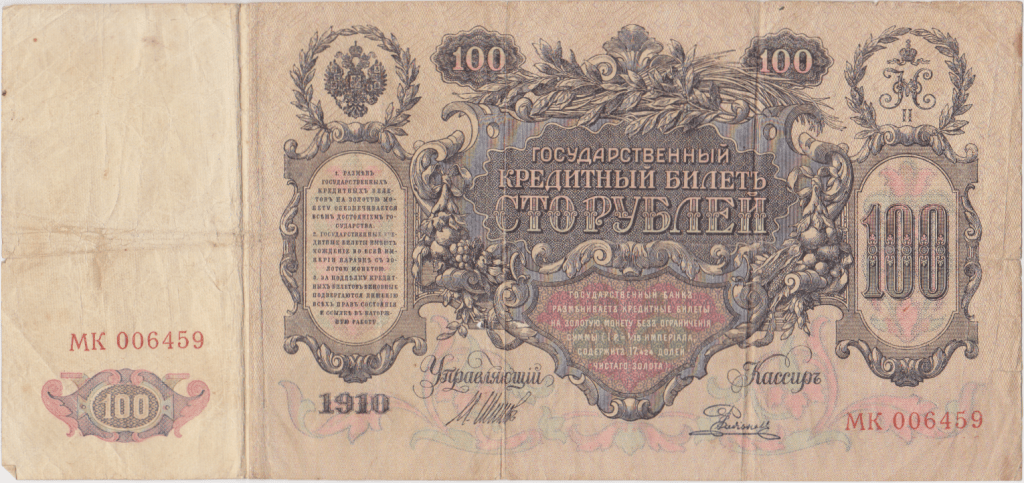
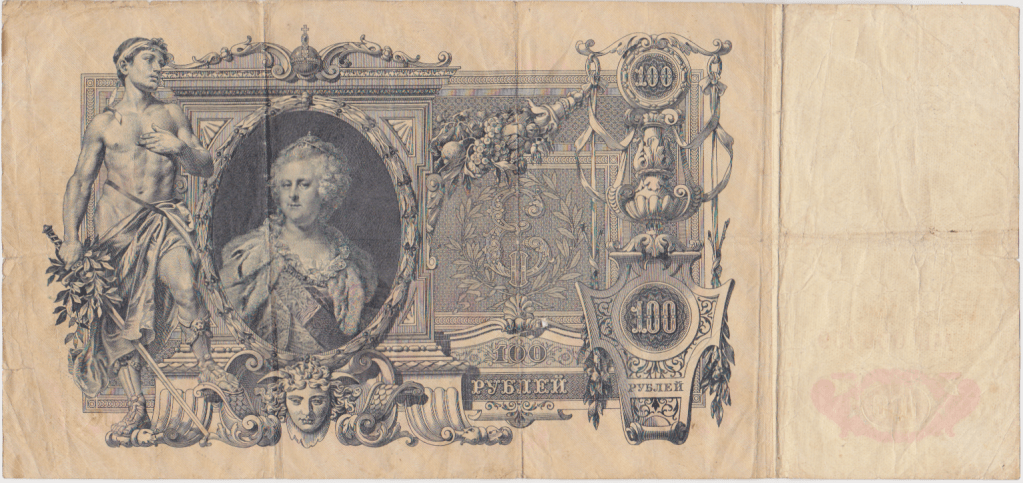
Varya spent the first half of this month in Russia getting her parents’ apartment ready to rent and visiting friends in Moscow and family in Saratov. She brought back some of her folks’ documents and keepsakes, including this 100 ruble note issued in 1910, perhaps handed down by one of their grandparents who grew up in the late Russian Empire, though Varya suspects her Dad simply picked it up somewhere as a collectible.

These days, 100 rubles would be worth about a buck fifty, but that’s not a valid conversion for this old money. The Russian ruble has been redefined/reset several times since the days of Tsar Nicholas II (whose “N II” crown seal is in the upper right corner), first by the Communists and a few more times during the 1990’s, a decade of financial and societal turbulence in Russia following the collapse of the Soviet Union. It’s more informative to read the reddish section in the lower center, which states this Russian government note may be exchanged for real gold at a rate of 15 rubles per imperial gold coin. So, this 100 ruble note would have been worth 100/15 or nearly 7 gold coins, a tidy sum for a member of the proletariat under the last Russian Tsar. Unfortunately, the Russian Revolution would render it worthless just seven years later.

Not unlike some of our US currency picturing fancy wigged dudes from a couple centuries past, this 110 year old ruble note featured Empress Catherine II, aka “The Great”, as she was still revered over a century after her death. The fancy E to the right of her image stands for Ekaterina, the Russian form of Catherine. At 26 cm (10.2″) wide and 12 cm (4.7″) tall, this is a big bill! So, the creases showing it was folded into a 1/8 area square are not surprising…how else would you carry this big, valuable paper around?!

Your $125 and Credit Freeze

In 2017, the credit bureau Equifax–one of the big 3 including Experian and TransUnion–admitted that it had suffered a massive security breach, exposing the personal information of nearly 145 million people, probably including you. Personal data stolen from Equifax included names, birth dates, social security numbers, addresses, drivers license numbers…basically everything bad guys need to steal your identity and open credit accounts in your name. Because their carelessness and negligence enabled the breach, and their delay in revealing the breach exacerbated danger to the public, Equifax recently agreed with the FTC to pay a settlement of $300-$700 million. Though this is little more than a slap on the wrist for a company of that size, it is better than nothing. There are many online instructions on how to claim your $125 from this settlement, or up to $20K if you suffered identity theft and resulting damages and expenses, including this ArsTechnica article, in a simple 2-step process: (1) confirm your eligibility, then (2) submit your claim online. Sure, this requires you to provide your information again to the same company that failed to protect it in the first place, but the cow is out of the barn, so you might as well get paid. As an alternative to cash, Equifax offers free credit monitoring for several years, but this is of little value given the limitations of credit monitoring services and the availability of similar free services elsewhere (e.g., Credit Karma and NerdWallet), not to mention your responsibility to monitor your own credit activity. I claimed the money.

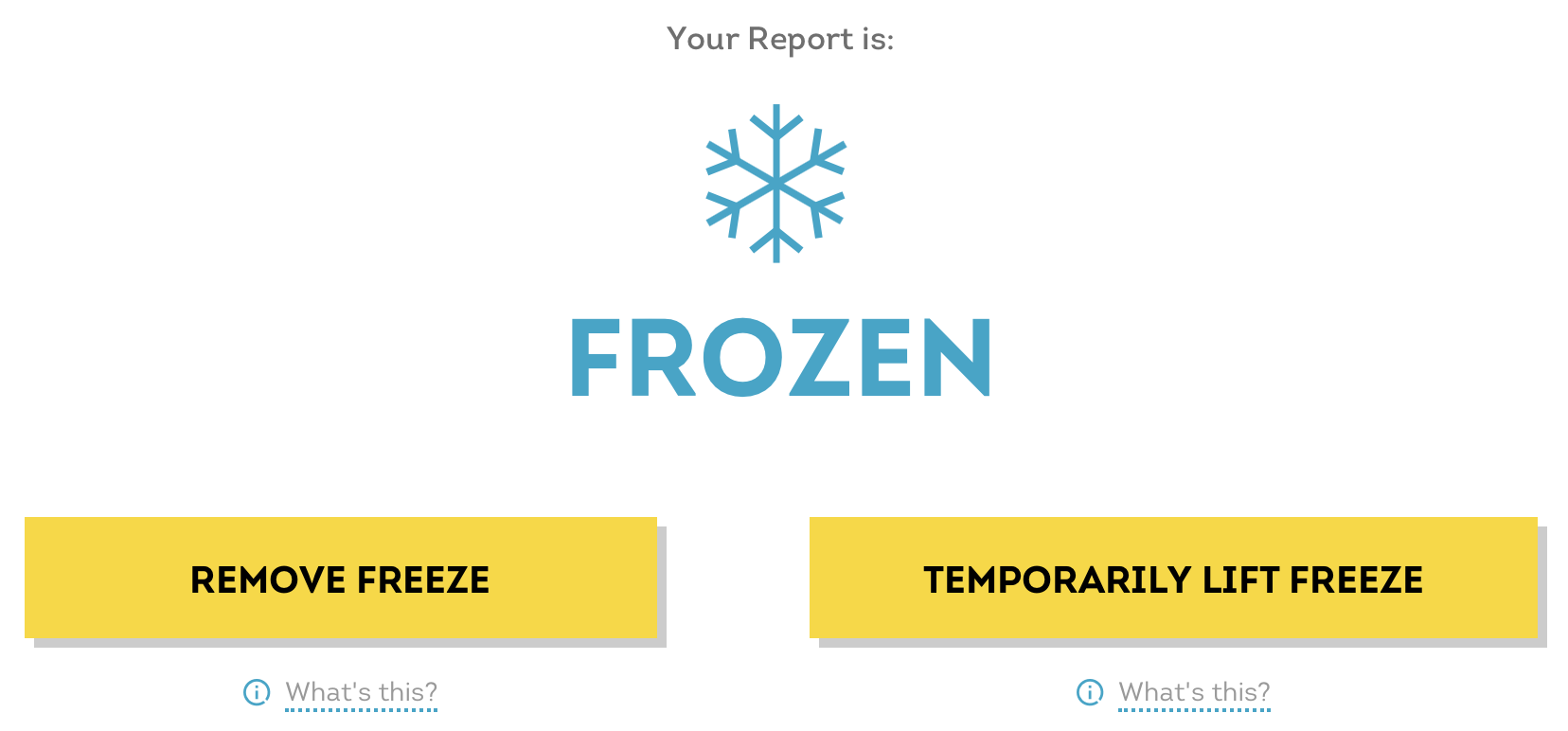
While you claim your Equifax settlement and review your free annual credit report, you may protect yourself by placing a free credit or security freeze on your account with each of the 3 credit bureaus. This NerdWallet article explains the free credit freeze (vs a “credit lock”, which may not be free) and provides the necessary web links (and phone numbers if you’re old school). It only took several minutes for me to create accounts with each of the 3 credit reporting companies–Equifax, Experian & TransUnion–and freeze my credit with each. I created a unique PIN for each that I can use to un-freeze my credit when I need to apply for a new credit card or loan. Anyone lacking those PINs will be unable to gain approval from the credit bureaus to open a new credit account in my name. I suggest that you create your own credit freezes for much more protection than mere credit monitoring.