Family members added to my Apple Family Sharing list get to use my purchased iPhone and iPad apps, iCloud storage, Music and News+ subscriptions and watch my purchased movies and shows, and vice versa. Instead of trying to explain this to some of my family members by phone or email (again), I thought I’d post a visual step-by-step guide for future reference by them and others.
Let’s start with my iPad home screen (below), in which I’ve highlighted Apple’s App Store, Music, News and Settings icons (your icon locations may vary). Using the same iPadOS 13.5.1 that I’m using will make it easier to follow along, so as a first step tap on Settings > General > Software Update and make sure your software is up to date; if not, go ahead and update it…I’ll wait here.

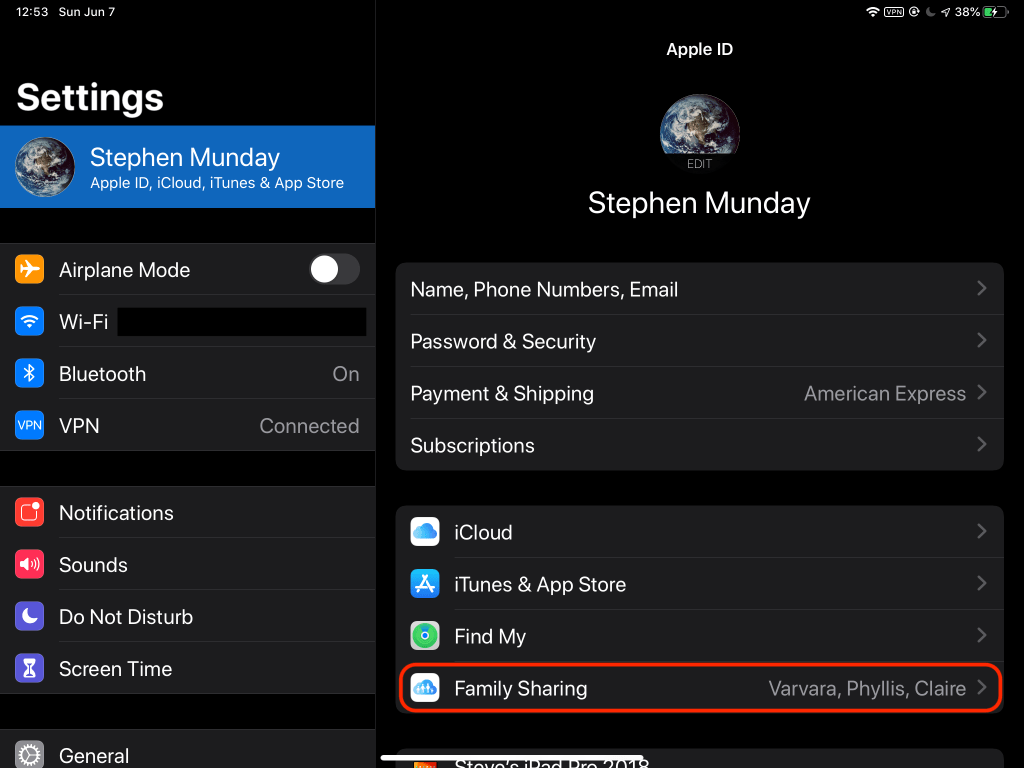
Now that our iPad software is matched, you’ll want to make sure your Family Sharing is turned on. In Settings, tap on your Apple ID/name at the top left, then on Family Sharing on the right. Below you can see that I’m already sharing with a few family members.
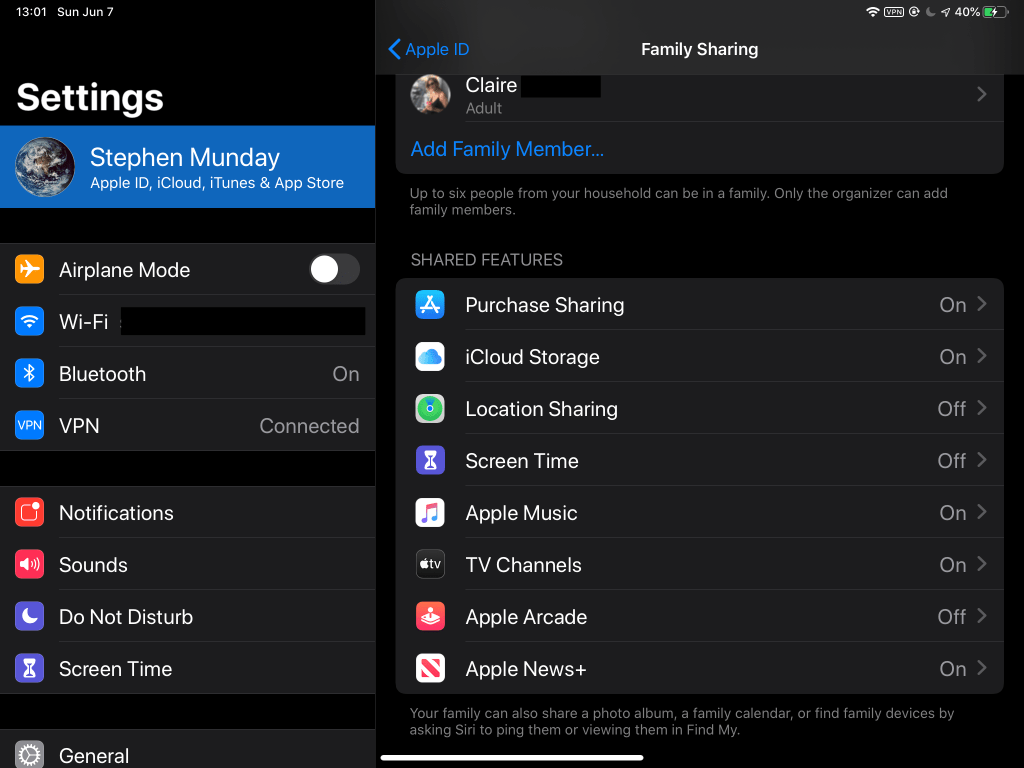
At the top of the Family Sharing window, you’ll see the Organizer (in my case, me), and any adult and child Family Members the Organizer has added, up to six people total. Scroll down and you’ll see all the available Shared Features. As shown below, I’m sharing my app purchases, my iCloud storage and Apple Music subscriptions, TV channels and movies, and my Apple News+ subscription. (I share my location on my iPhone that usually stays with me, so I have it turned off here on my iPad that usually stays home.) Go ahead and turn on your Purchase Sharing so that other Family Members can access your purchased apps.
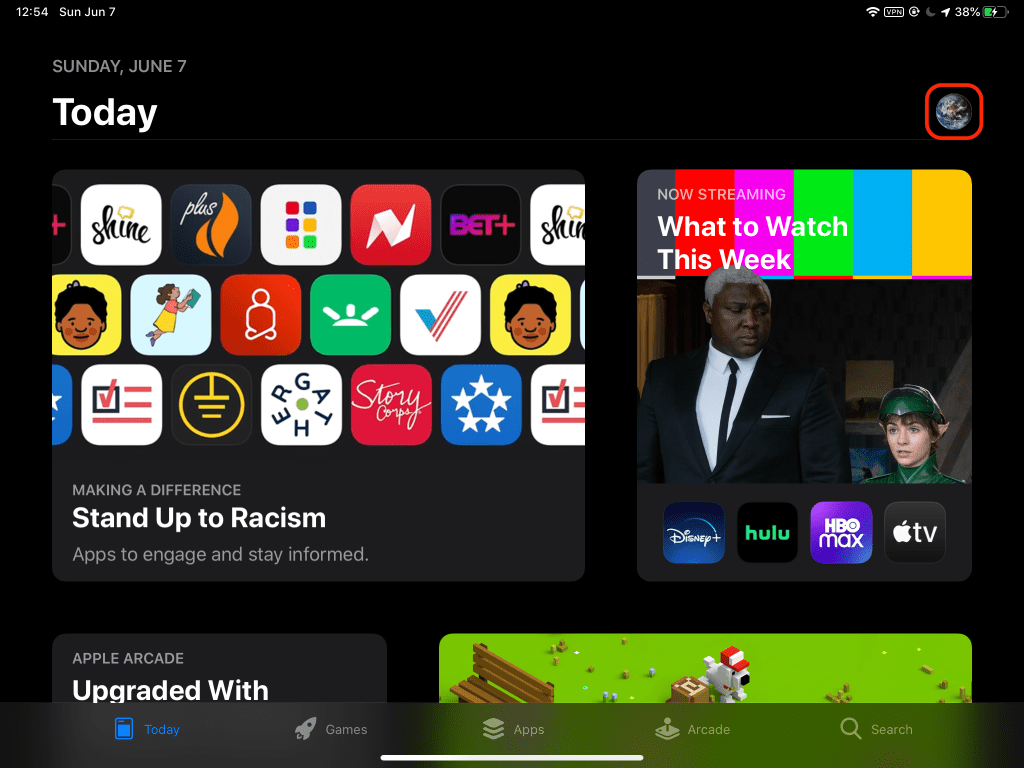
Now we’ll close Settings, open the App Store, and tap on the Apple ID icon in the upper right, in my case mother Earth (your icon may vary).
This brings up a smaller Account window in which you can tap Purchased. You could also tap Subscriptions just below that to see a list of all your active and expired subscriptions, handy for canceling subscriptions you may have forgotten about or no longer need, but that are still charging to your credit card, or to the Organizer’s card if you’re a Family Member.

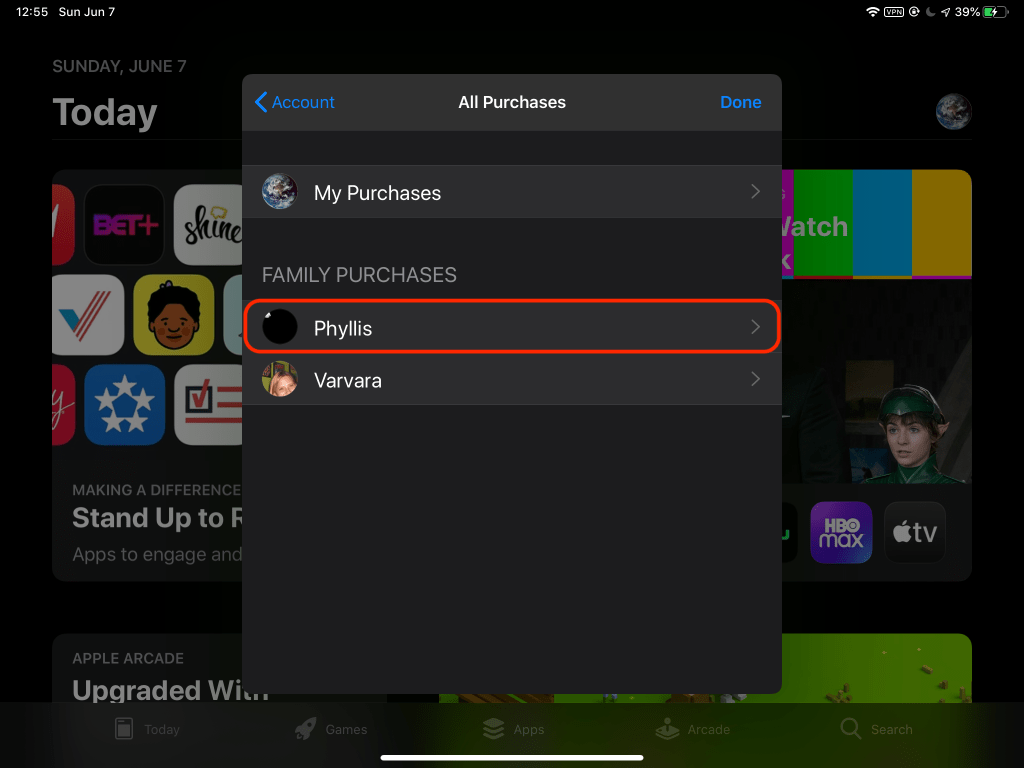
Tapping Purchased provides a choice between My Purchases and Family Purchases listing Family Members who are sharing purchases. In my case, Phyllis and Varvara are sharing purchases, while Claire is not and does not appear here. I’ll tap Phyllis to see what apps she has to offer.
I get the scrolling list of Phyllis’ purchased apps shown below. Apparently Phyllis likes words and cards. I tap on “Not on this iPad” at the top of the sub-window to make sure I’m only seeing apps I don’t already have, apps that Phyllis bought and that I’m able to download for free from the App Store because of Family Sharing and Phyllis’ Purchase Sharing.
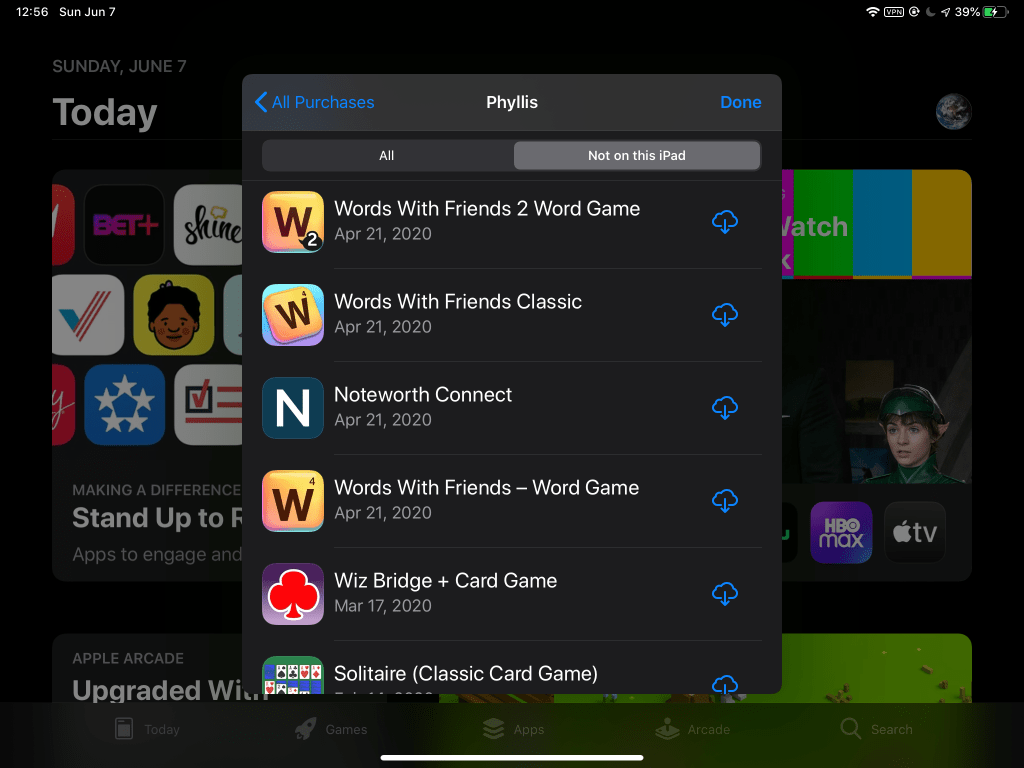
Hmmm…Words With Friends Classic…isn’t that basically Scrabble (yawn)? I can tap on the app icon on the left or title in the middle to see the app description, ratings, and other app information. Or, I can simply tap on the cloud with down arrow icon on the right to download the app immediately. The circular download progress icon appears for a few to several seconds, depending upon your broadband speed and the file size, and finally becomes an OPEN button when the app is downloaded and installed.
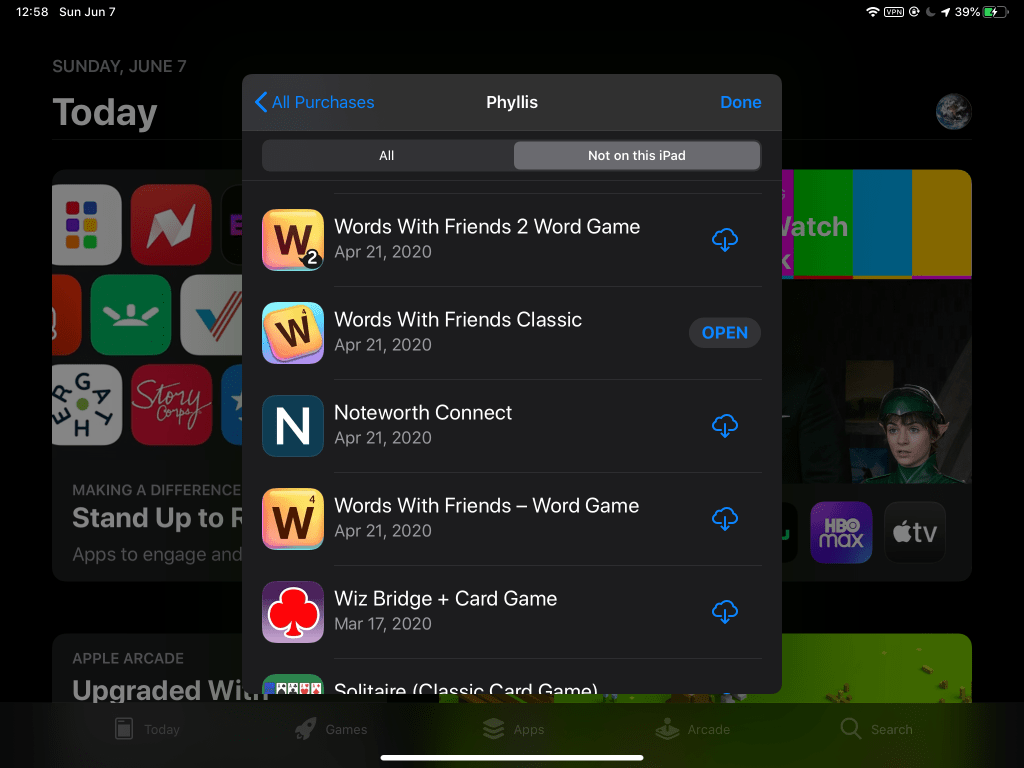
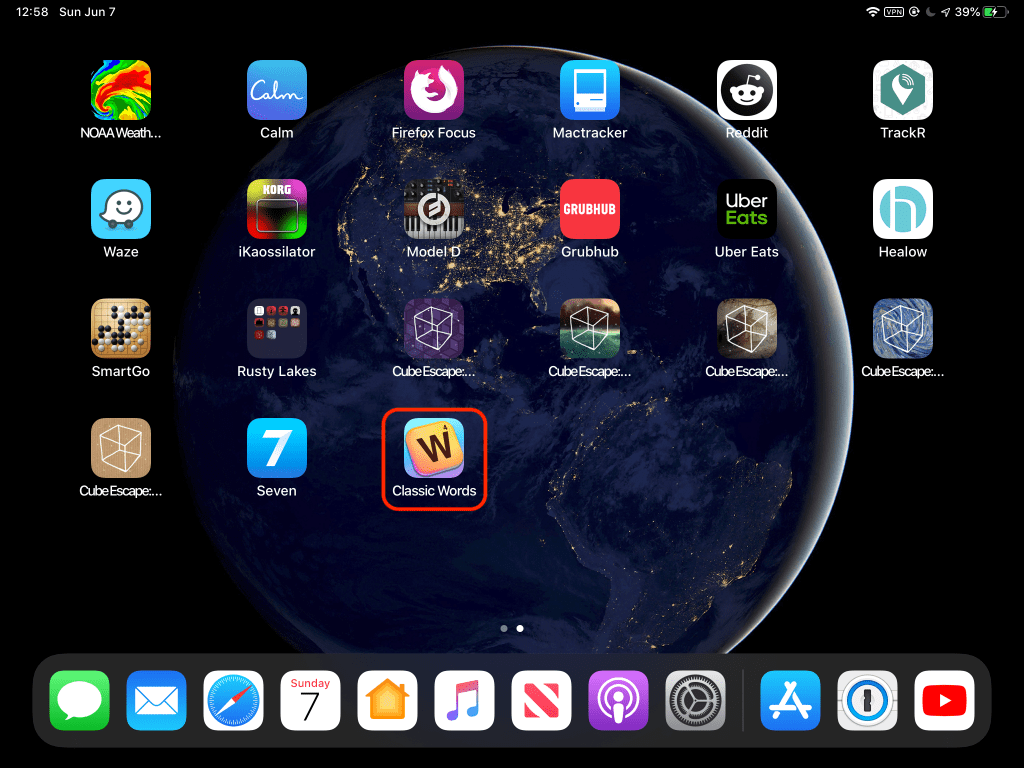
At this point, I could tap OPEN to open the app from here. Or, I could back to the iPad home screen and find and admire the newly installed app icon…then delete it because, you know, Scrabble (yawn).
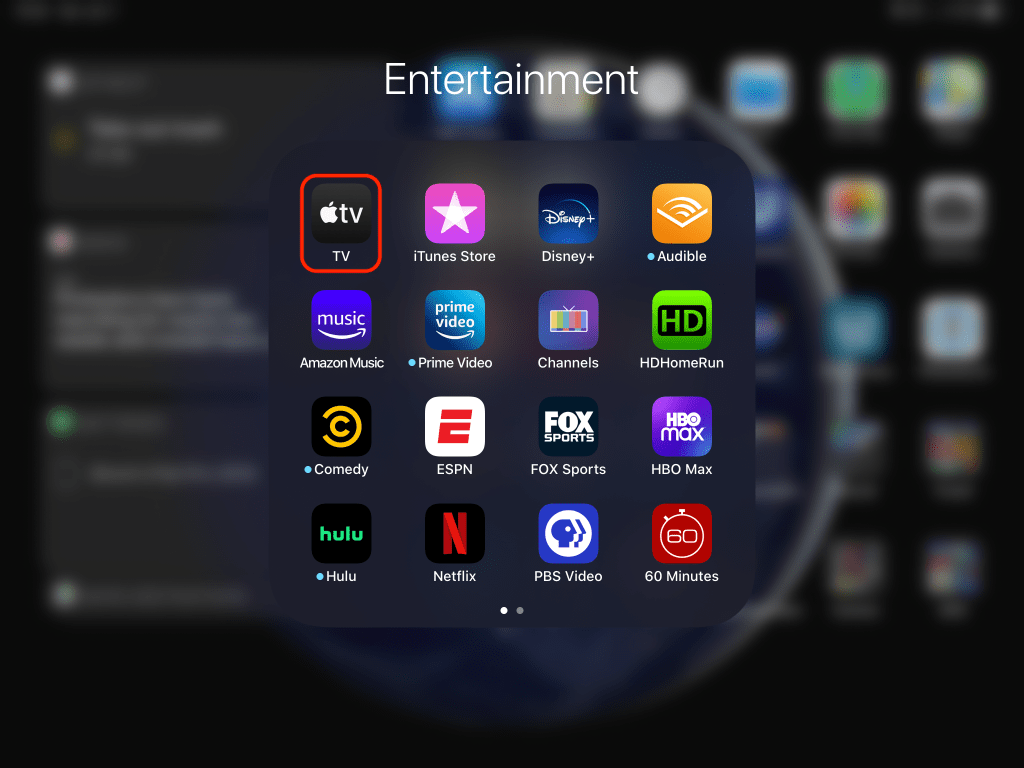
Let’s move on from shared apps to TV shows and movies. Tap and open the Apple TV app. Mine is in my Entertainment folder, but your location will vary.
In the Apple TV app, tap on Library at the bottom, then Family Sharing on the left to see a list of Family Members who may or may not be sharing anything.
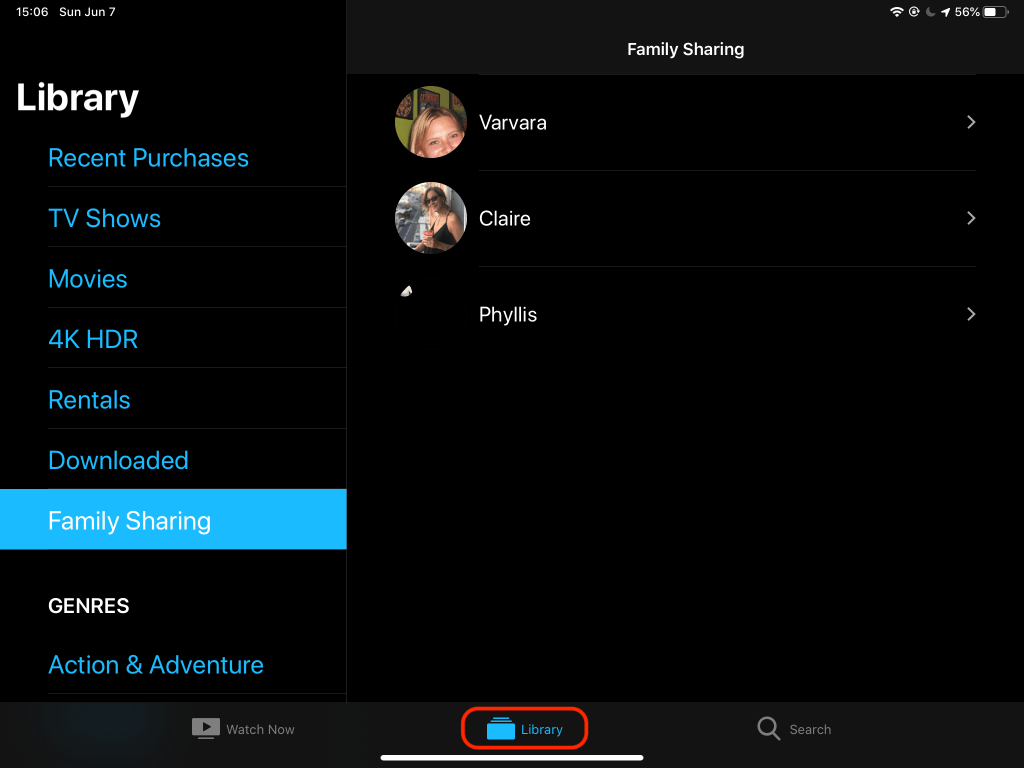
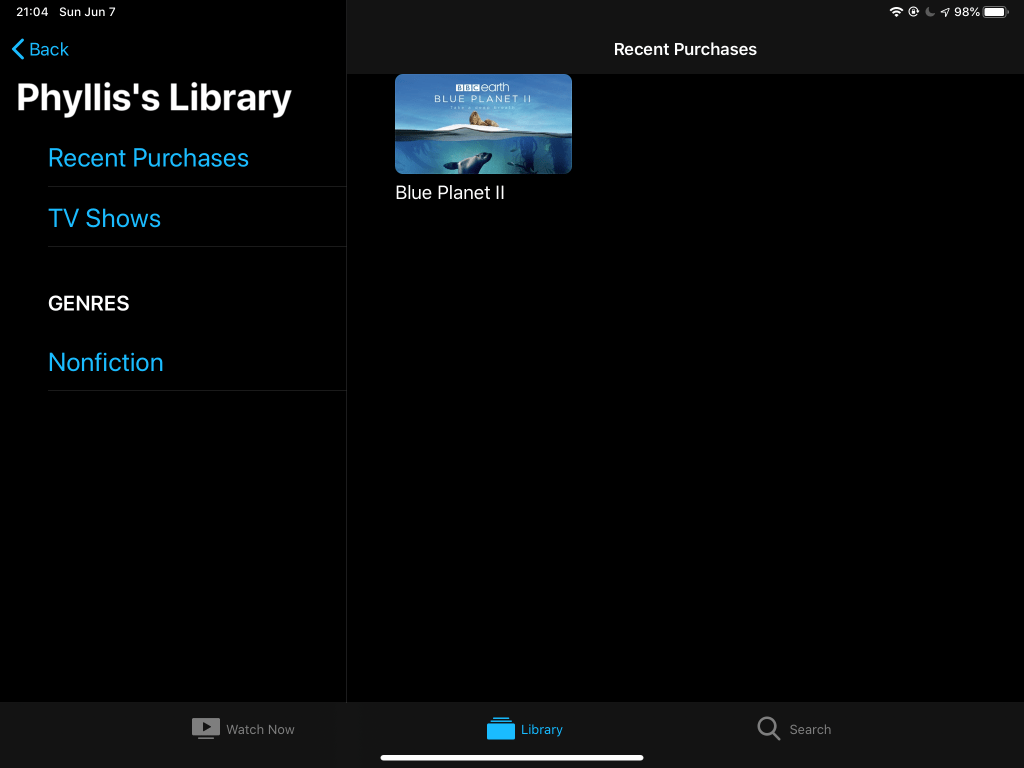
When I tap on Varvara, I get a message, “No TV Shows or Movies, Your library is empty…”, because she doesn’t buy or rent video content in Apple TV or iTunes. When I tap on Claire, I get a message, “Family Member Not Sharing, Claire is currently not sharing their purchases. They can change this in Settings.” She’s not a sharer, or inadvertently turned off Purchase Sharing in Settings > Apple ID > Family Sharing. When I tap on Phyllis, I see her entire library consisting of one Blue Planet II show trailer that I installed on her iPad as a test long ago. I could download and watch it on my iPad from here. Fortunately for my Family Members, they see a much larger selection of TV shows and movies when they tap on my name in the Apple TV app, including Apple’s original shows in my Apple TV+ subscription. (We recently enjoyed M. Night Shyamalan’s creepy Servant series in Apple TV+.)
Finally, Apple Music and Apple News+ are much easier to share and use: once the Organizer has shared them, all Family Members can simply open these apps and use the subscription services. Apple Music has about 50 million songs in all genres, as well as a For You section that learns your tastes and offers playlists and artists. Apple News+ includes most major news outlets and–what really sold me–many magazines, including a few I used to subscribe to separately, but now get as part of my Apple News+ subscription. Back on the home screen, find and tap to open Apple News (stylized red N on a white icon…see the first image at the top of this post), then tap News+ on the left to browse, search and read magazines in many genres. The image below shows I like Scientific American and Wired (two of my former subscriptions replaced by Apple News+), and if you could scroll this image to the right you’d see Motortrend, Forbes, Macworld, etc.
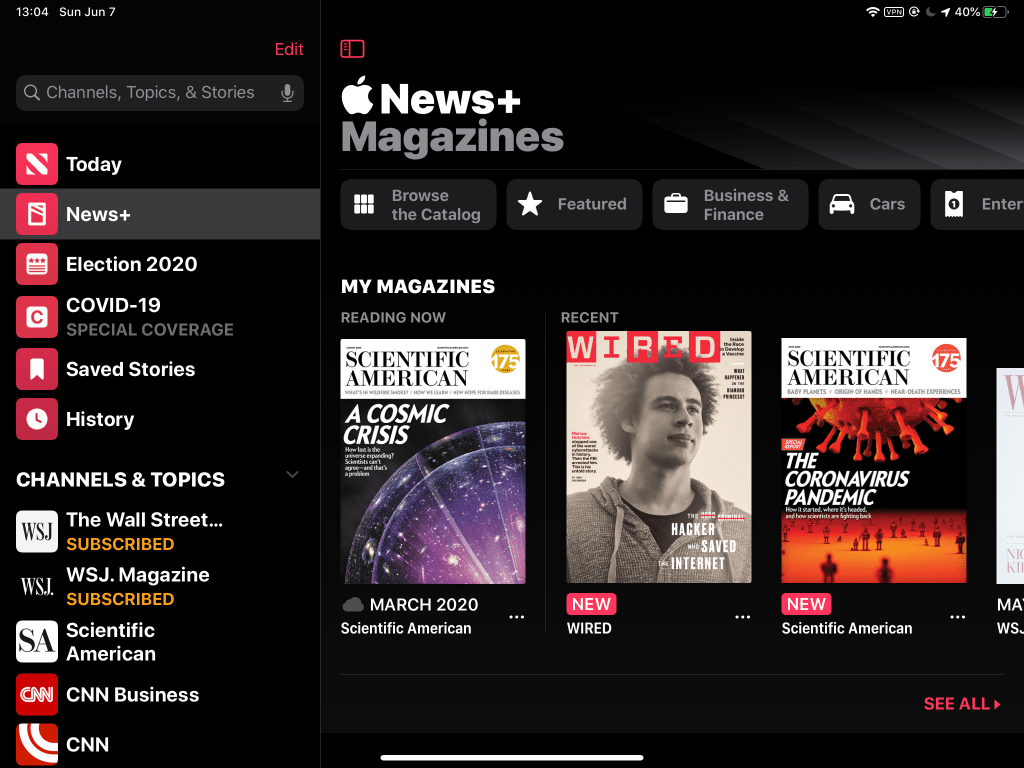
Apple has added Election 2020 and COVID-19 as special sections on the left side of Apple News for easy access to the latest-n-greatest news on these topics of mass interest. You can add or delete channels & topics in your list if you wish, or let Apple’s learning algorithm auto-pick them for you.
That should be all you need to get started with Apple Family Sharing on your iPad and iPhone. Happy sharing.













 Moonday